

What is Padlet?
Padlet is an easy-to-use website software for collaborating with others. It’s an online noticeboard that enables tutors and students to share ideas, information and knowledge.
In order to access a Padlet board, students can be given a link to access it from their phones, tablets or computers. The website provides easy-to-use sharing options, such as a URL or QR code.
Boards could be used for pre-learning assessments, ice-breakers, scavenger hunts, sharing examples of completed work, reading lists, debates and discussions, maps, timelines, polls, assignment briefs, learner-generated content or activities, support, Q&As, feedback and many more teaching and learning activities.
Pros
- Easy to use and intuitive, supporting collaborative learning, it is easily implemented
- Flexible and visually engaging with multiple communication methods (text, images, audio and video) and styles (wall, canvas, stream, grid, shelf, map and timeline).
- Available across different platforms, browsers and devices including iOS, Android and Kindle (not compatible with Internet Explorer).
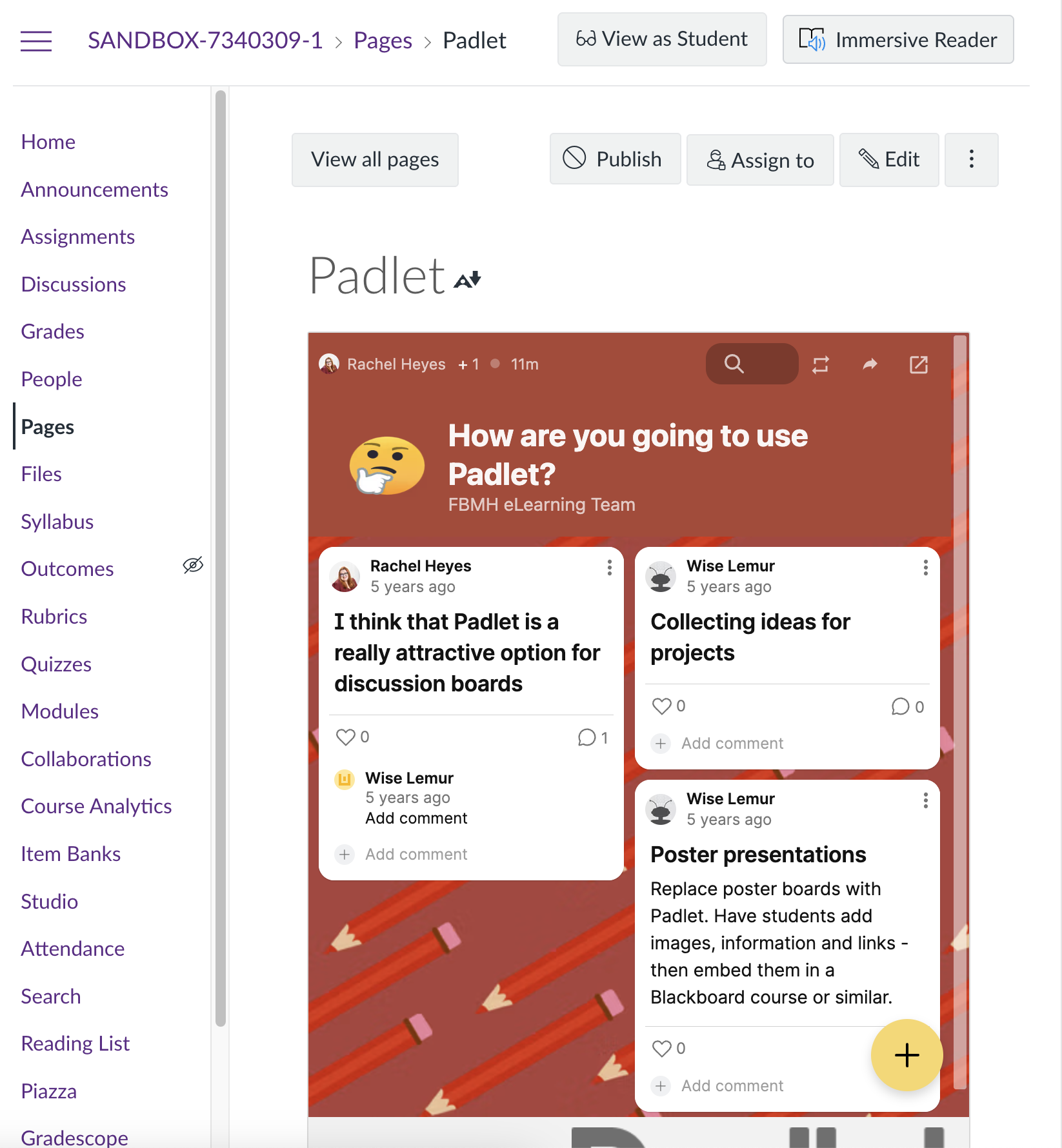
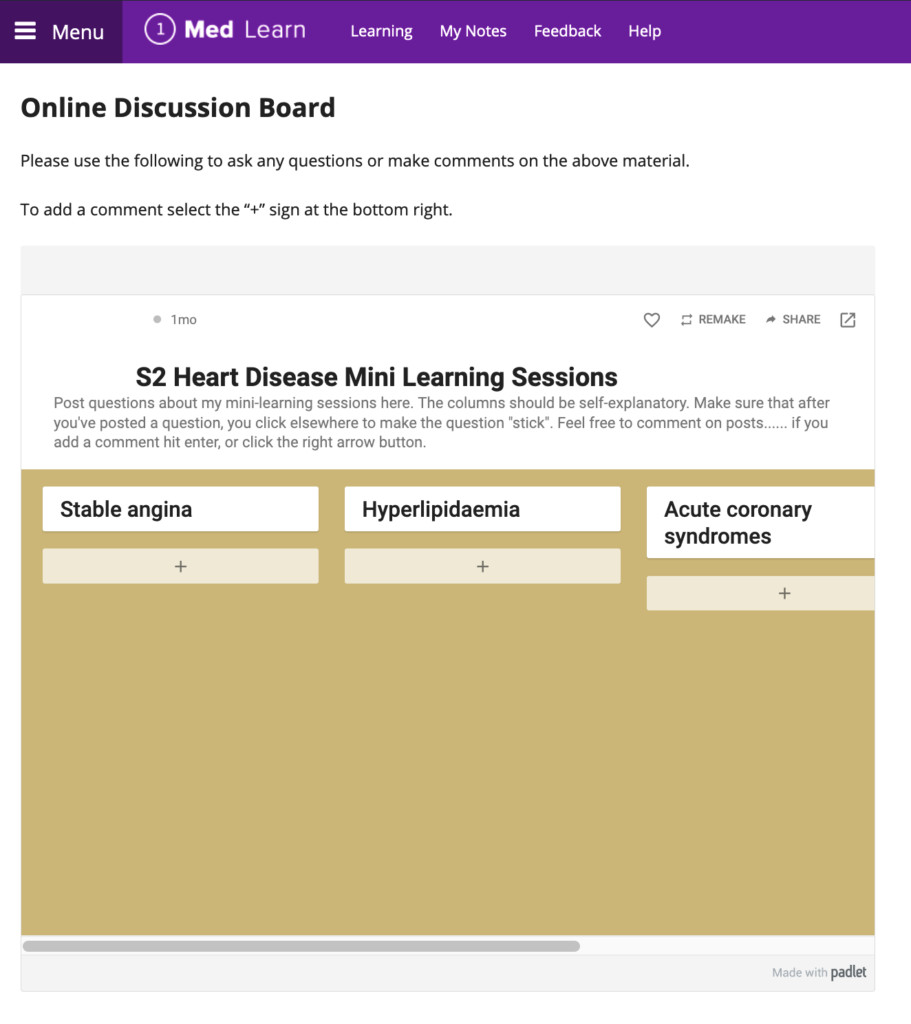
- Boards can be embedded into Canvas (and other websites).
- UoM has purchased Padlet licences for staff which means that you can create more than the 3 boards that are allocated to basic plan users.
- Boards can be exported or shared, supporting learning activities and revision.
- By default, you will receive notifications for the most important activities in your account, including when new posts are added to your padlets and when someone comments on your posts.
Cons
- There are some accessibility issues in relation to low vision colour contrast, keyboard access, screen reader software, alt text, and video captioning.
- Boards do not encourage in-depth, detailed responses, which could limit discussions.
- It may not be clear who the post is from. Owners can turn on attribution but this will only apply to pro plan users, which will be staff, not students. We recommend asking your students to include their names with their posts.
How to obtain a licence
The free version of Padlet allows you to create a maximum of three Padlets. The University licence (School Backpack) allows you to create an unlimited number of Padlets.
To apply for a licence, you just need to complete this form: Padlet Licence Request
Please note: If you already have a Padlet account that uses your University email, your free account and your University account will sit side by side. Your prior Padlets will be retained and if you would like to import them into your University account, you will be able to do so when you set up this account.
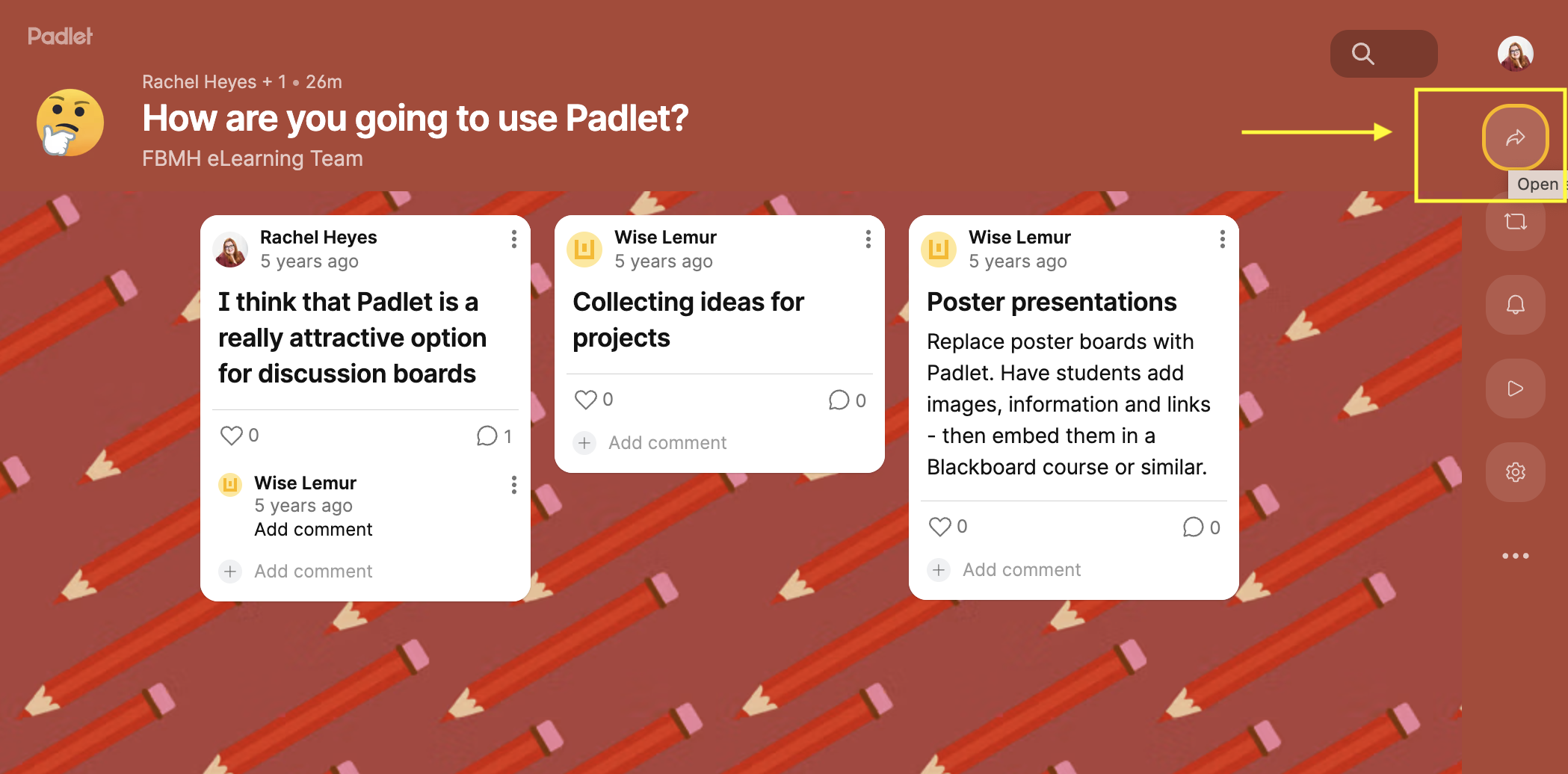
How to safely share a board
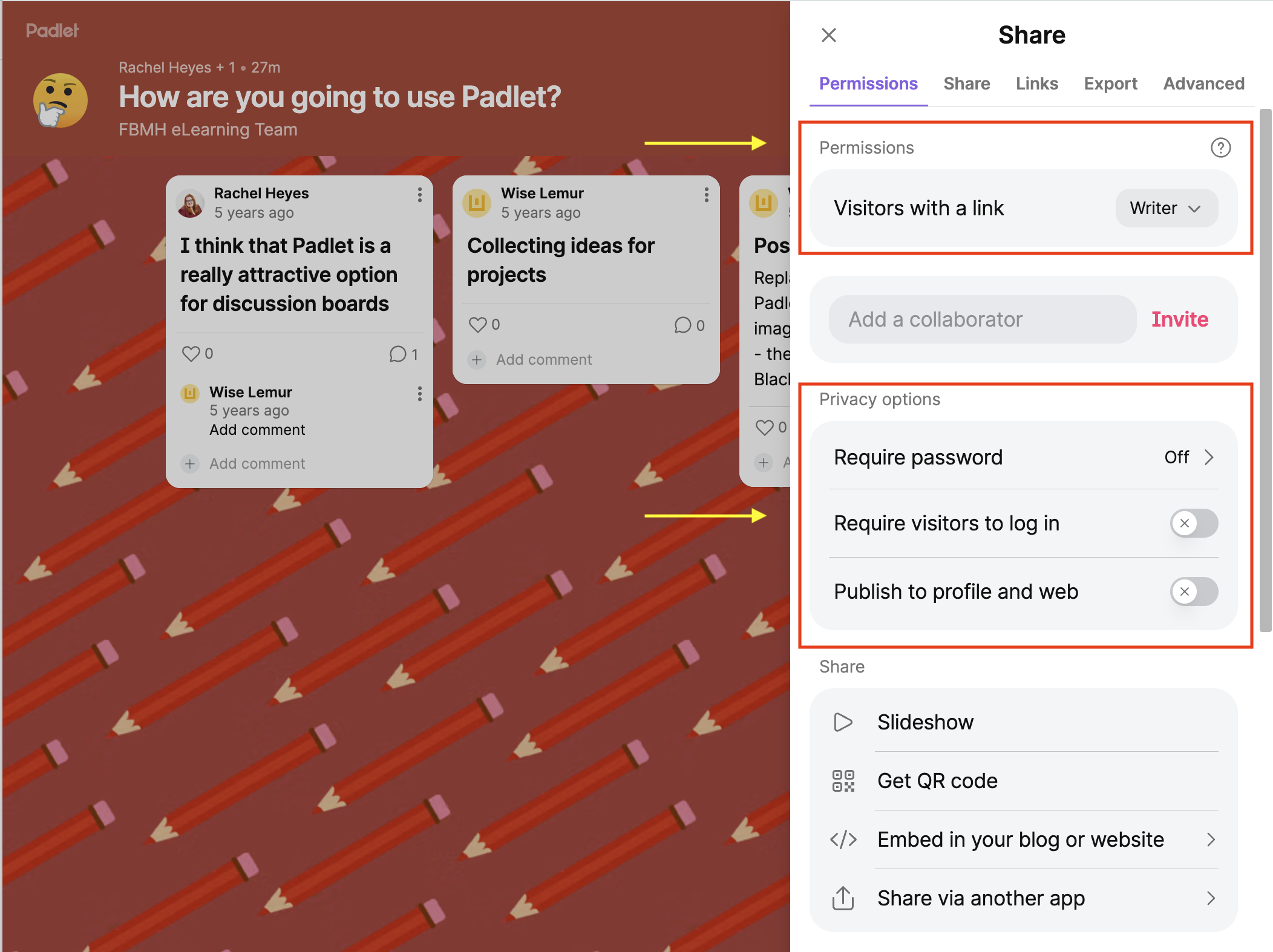
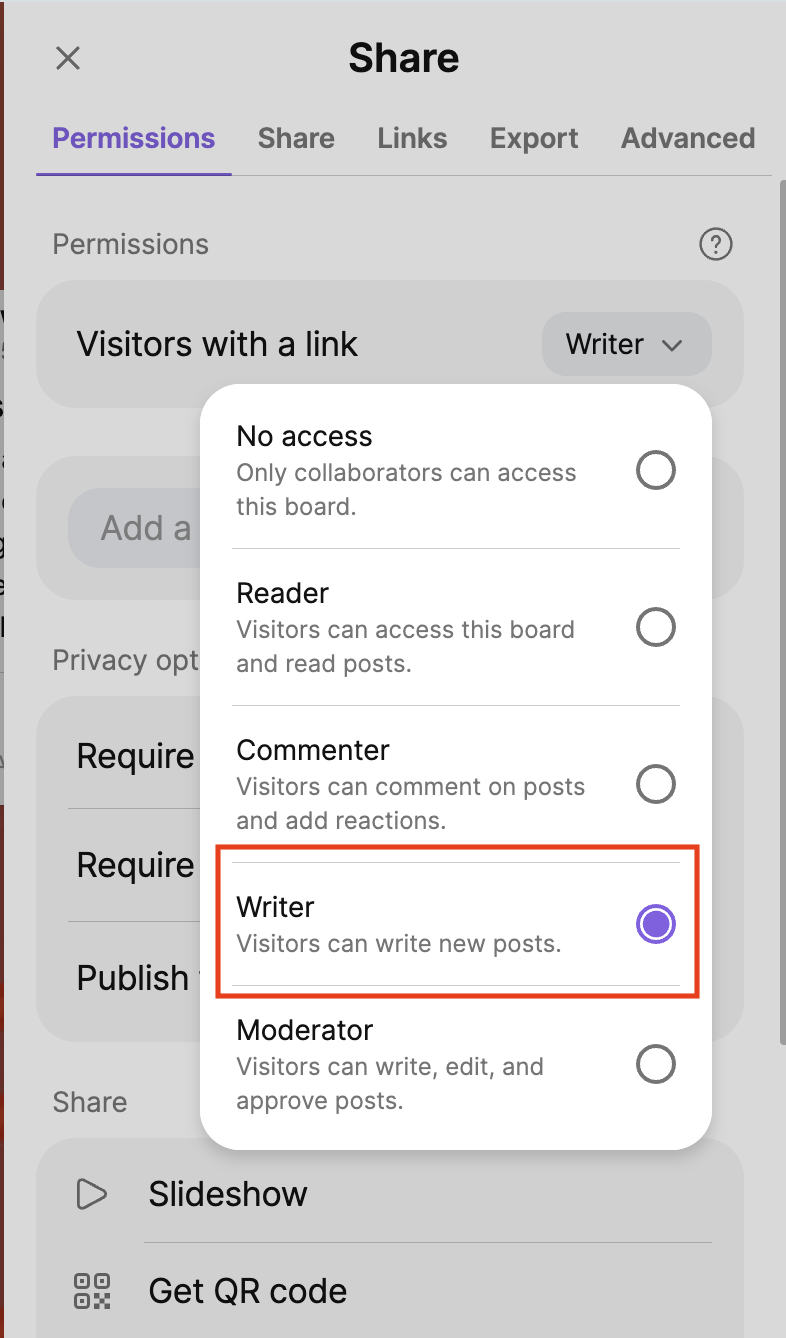
There are different visitor permissions when sharing your board:
- No access – Only the padlet creator and users added as collaborators can access the board.
- Reader – Visitors can access the padlet and read existing posts.
- Commenter – Visitors can comment on existing posts and add reactions/votes.
- Writer – Visitors can access the padlet, create new posts, read existing posts and comment/react.
- Moderator – Visitors can read, write, comment, edit and approve posts.
- Admin – Users can create, edit, and approve posts.
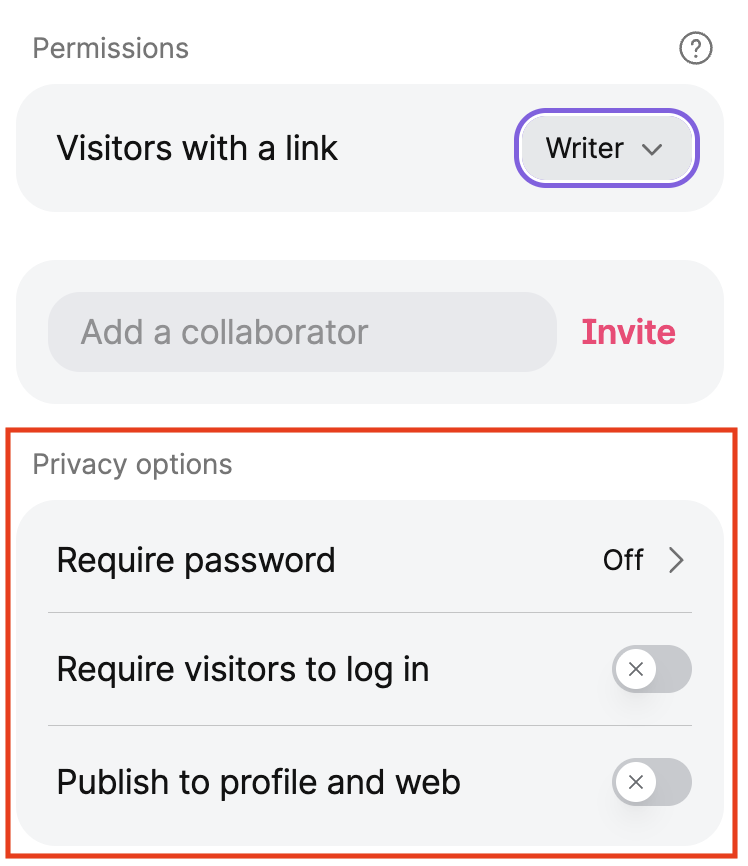
There are different privacy access options when sharing your board:
- Require password: Users will need the link to the padlet and the special password to access the content.
- Require visitors to log in: Require that users are logged into a Padlet account before they can access the content.
- Publish to profile and web: This option publishes the padlet for all to see!
We would advise setting the visitor permission as ‘Writer‘, and the privacy access option as ‘Publish to profile and web‘, unless you have specific requirements.
How to embed a Padlet into Canvas (or a website)
You can embed Padlet boards into Canvas, and other websites (such as 1Med Learn), using an embed code or URL as follows:
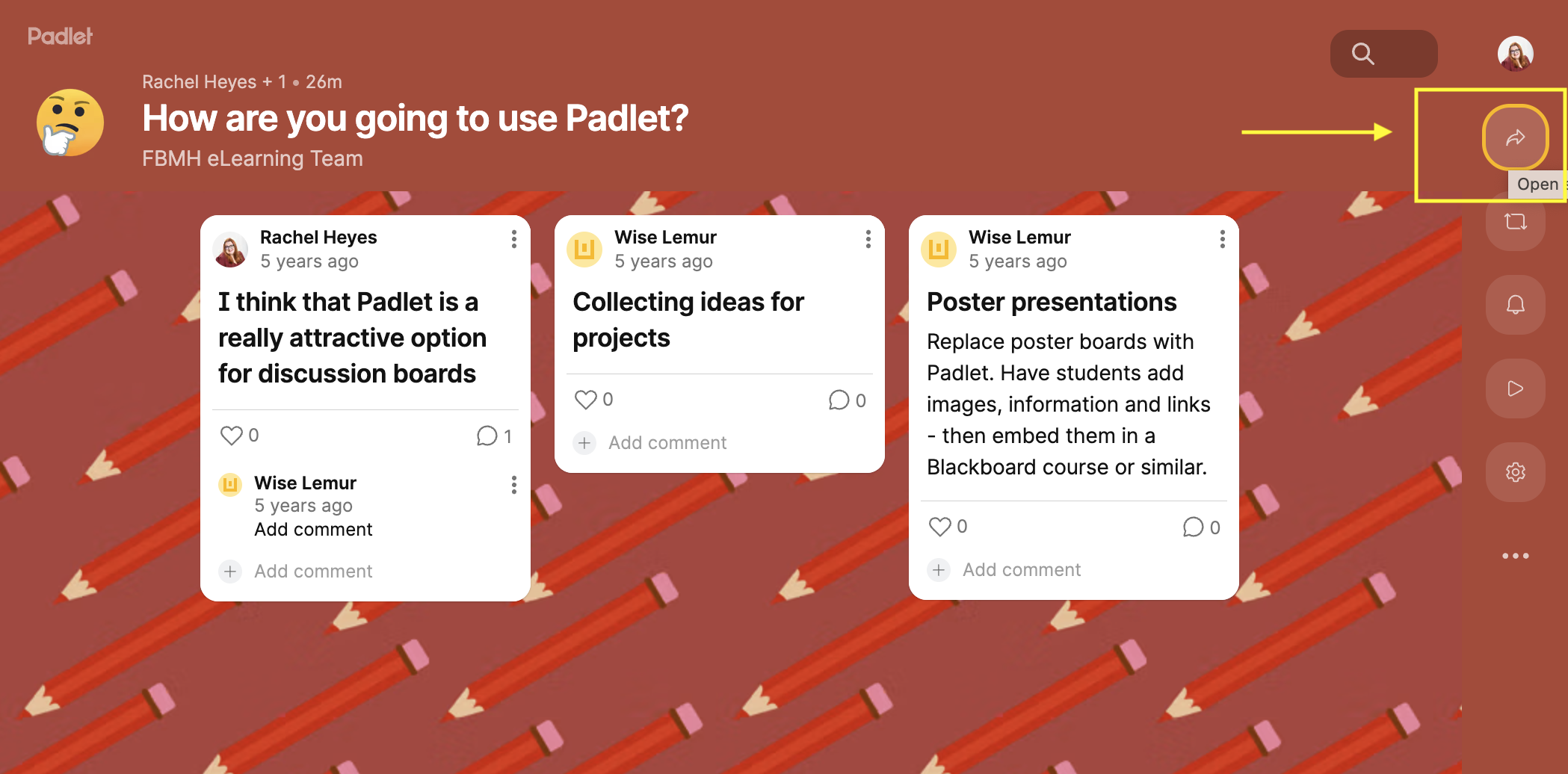
- Click on the Share icon in Padlet
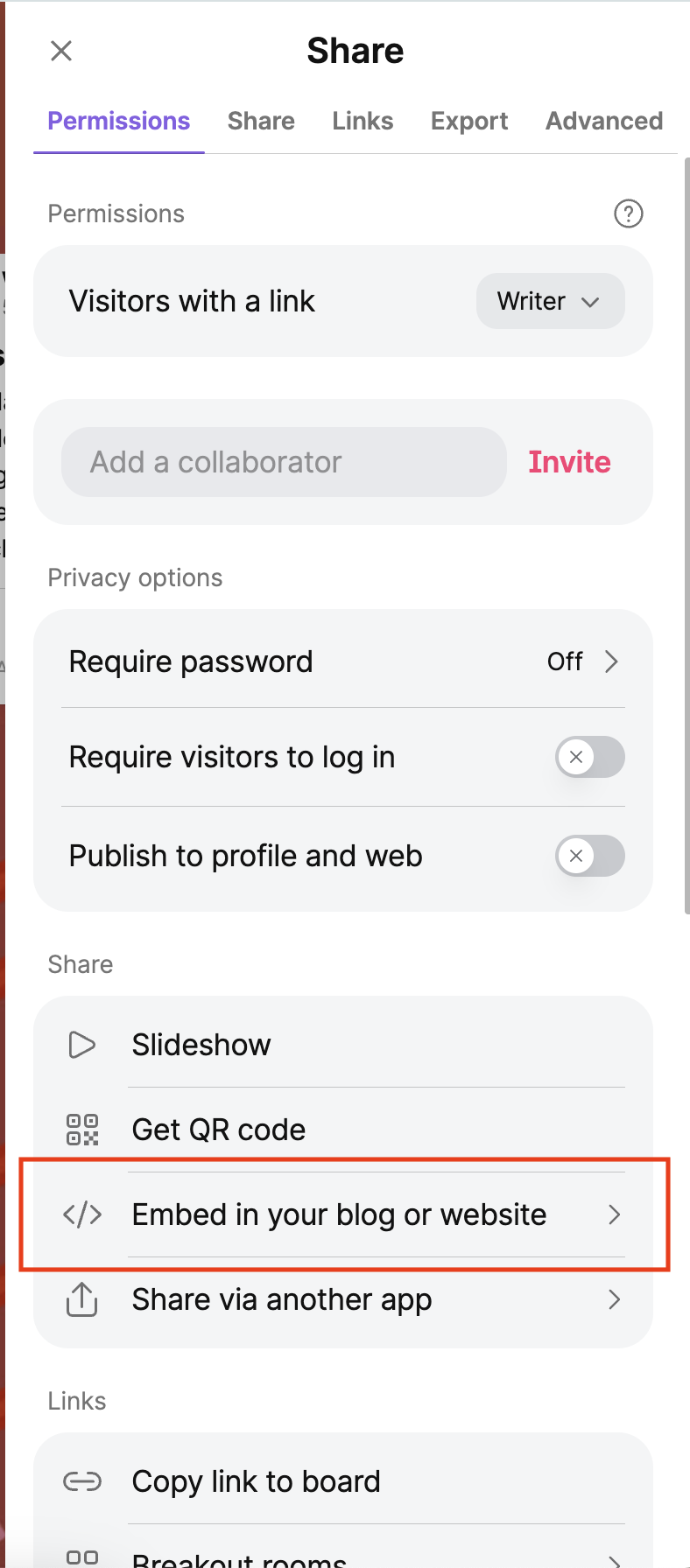
- Find, and select the option ‘Embed in your blog or your website’
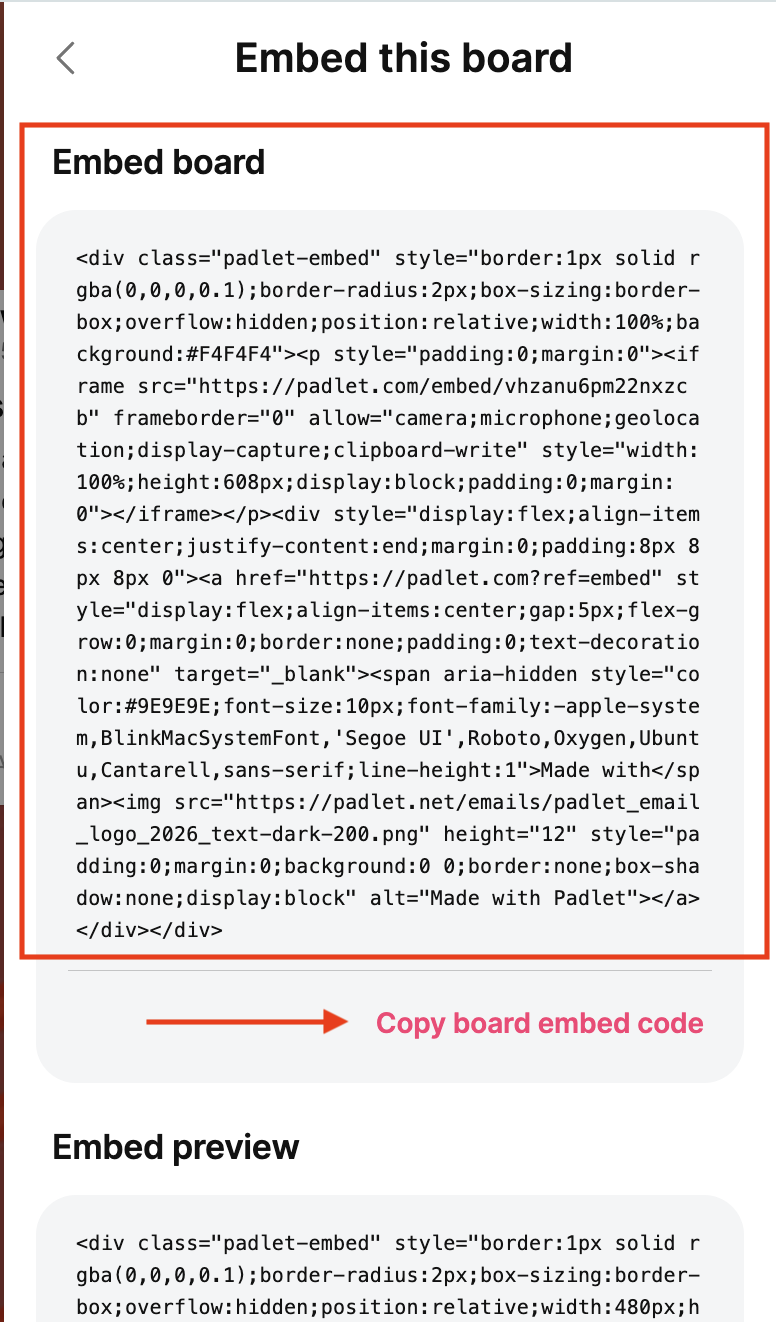
- Copy the ‘Embed board’ code by selecting ‘Copy board embed code’
- Navigate to Canvas
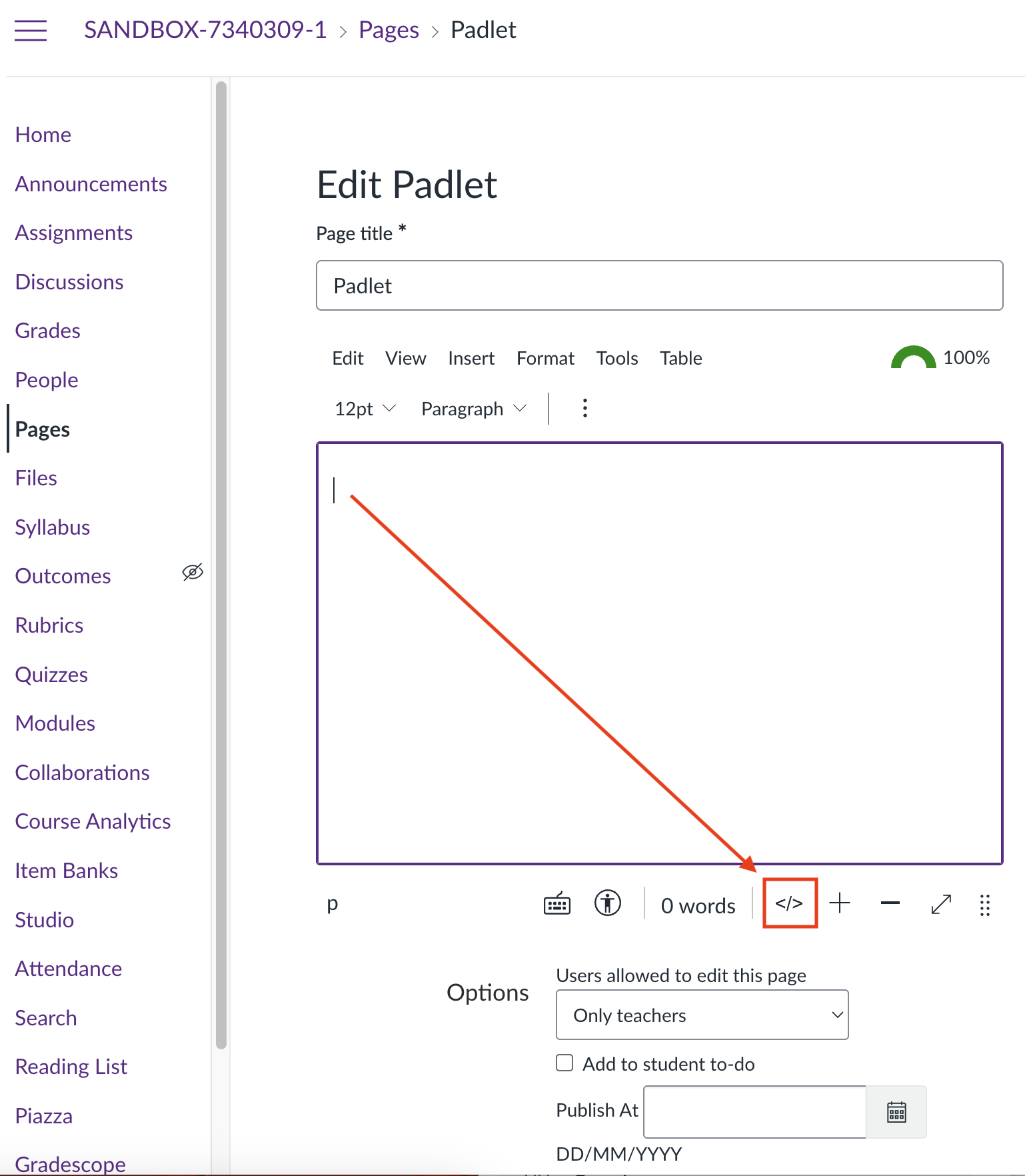
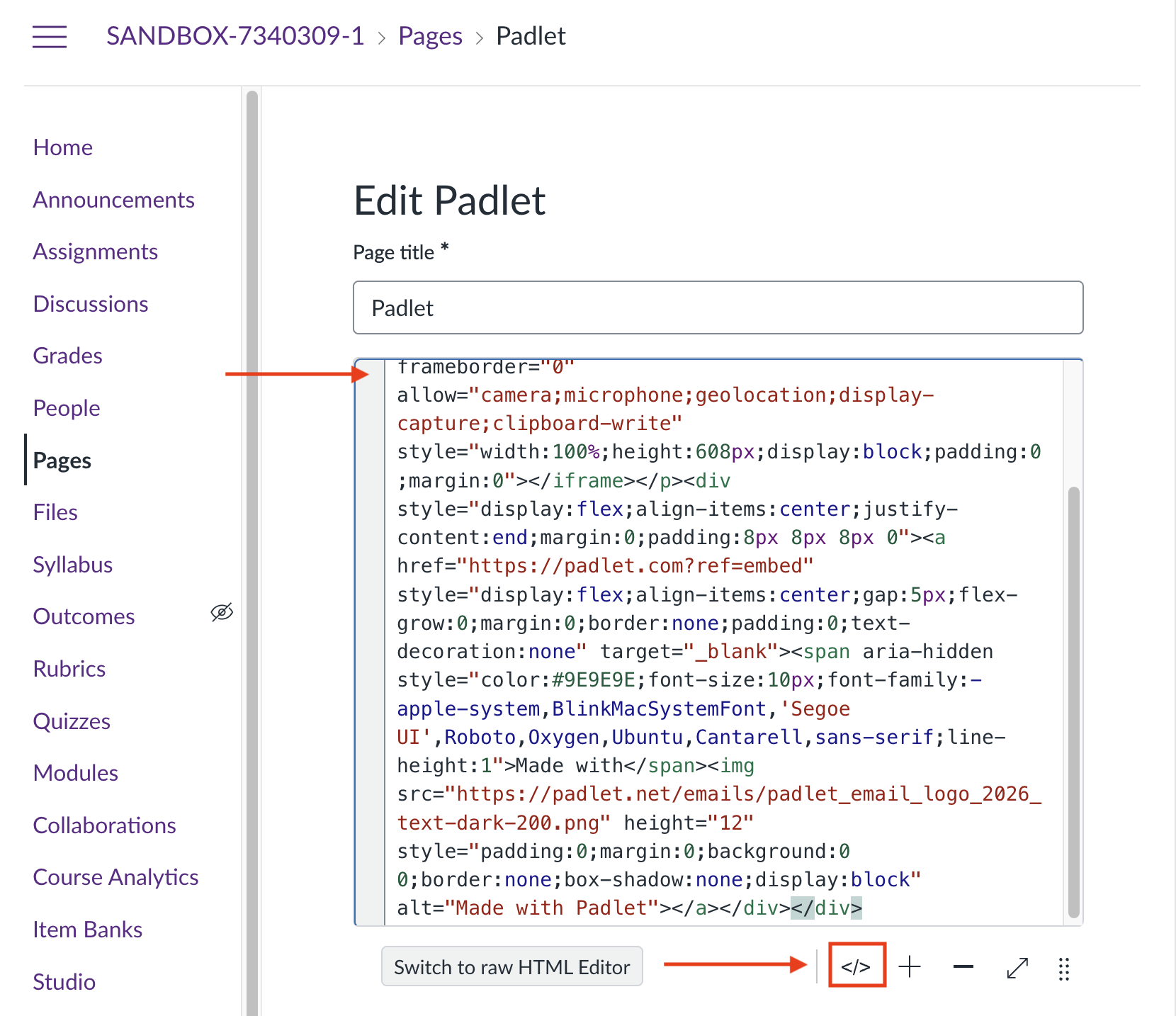
- Navigate to edit the page where you would like to add your Padlet.
- Select the HTML editor icon </> to display the code editing tab.
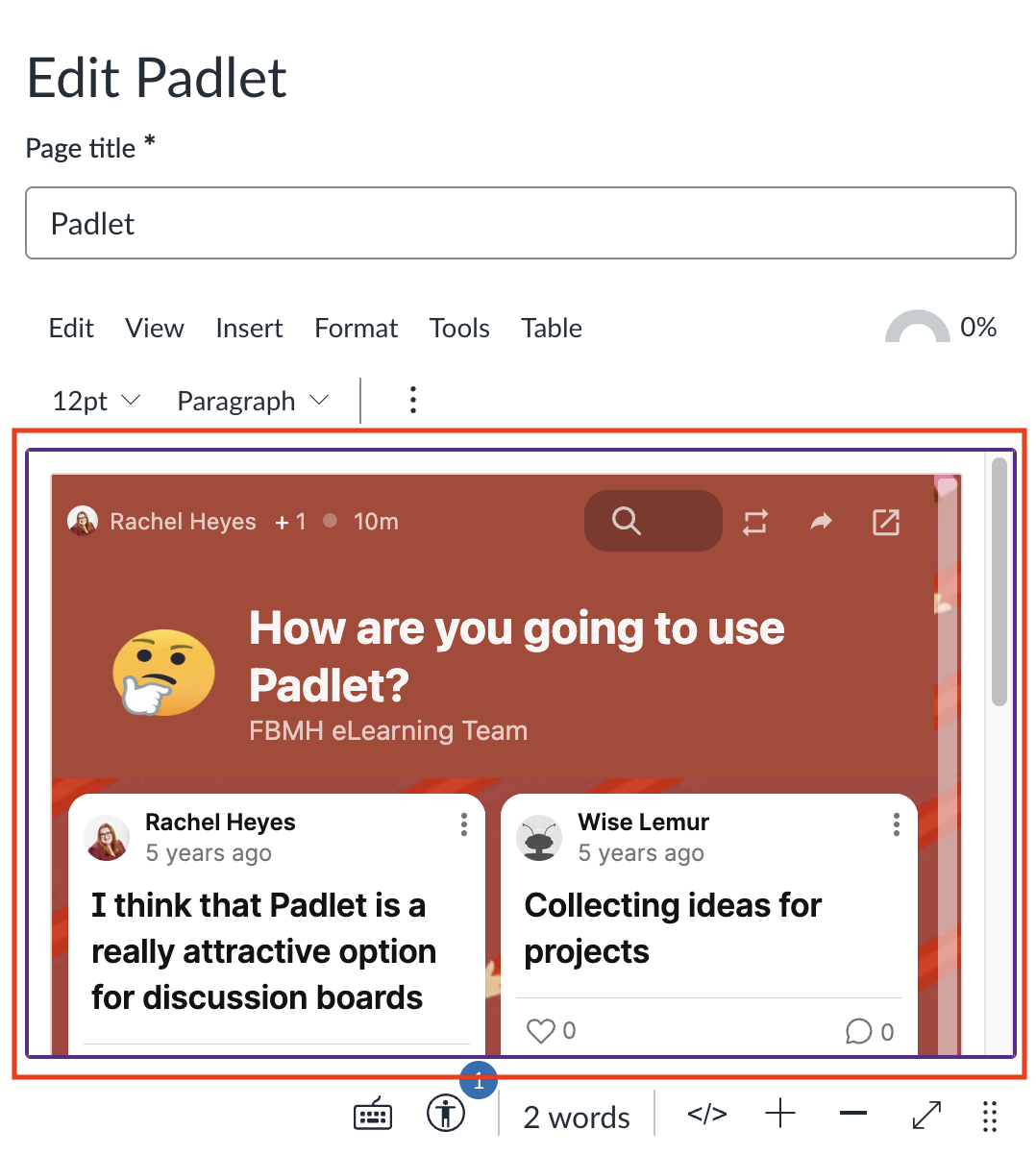
- Paste the code from Padlet.
- Select the HTML editor icon </> to check that it worked.
- Select ‘submit’

More information
Author: Rachel Heyes